# Creating a New Allocation
### To request a new allocation:
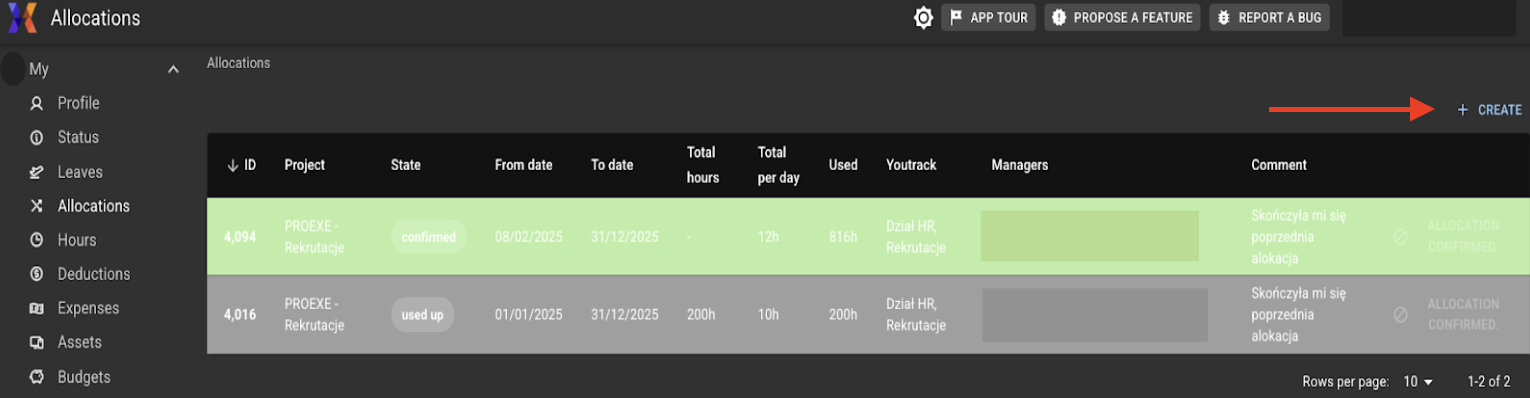
1. Click the **+CREATE** button at the top-right of the Allocations page
Allocations View
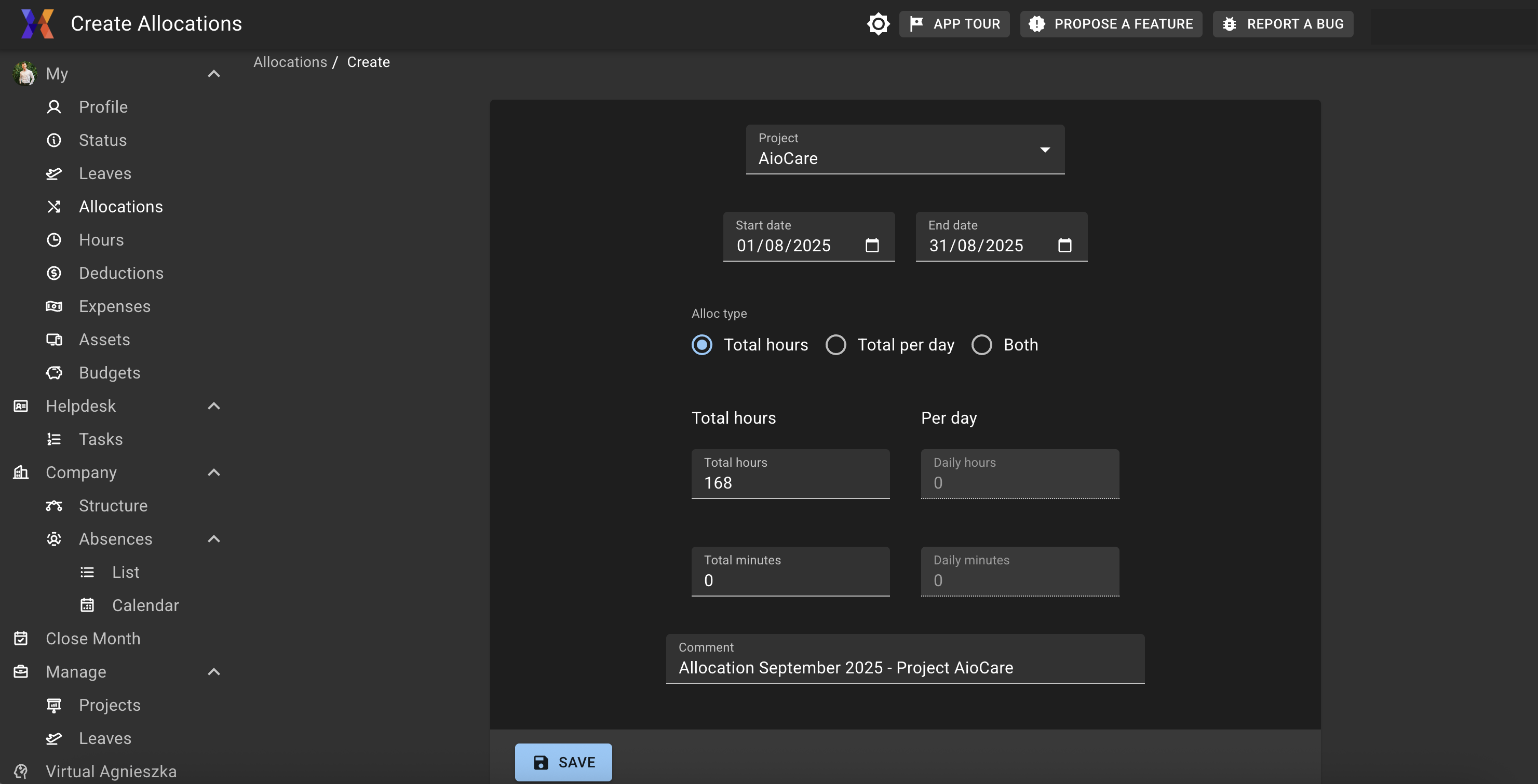
2. **Fill out the form:**
New Allocation Form
3. **Select the project** the allocation applies to.
4. **Choose the timeframe** for which the allocation will be valid (start and end dates).
5. **Define the allocation type**:
1. Total hours – sets the overall limit for the full period
2. Total per day – sets a daily reporting limit
3. Both – applies both limits
6. **Add a comment** explaining the reason for this allocation (e.g. project phase, extended work, split team).
7. Click **Submit** to send the request for approval.
{% hint style="success" %}
Once submitted, your manager or allocation approver will review and either confirm or return your request for clarification.
{% endhint %}
{% hint style="info" %}
#### Why Allocations Matter
* They define how your working hours are tracked for each project
* Help ensure accurate and traceable reporting
* Support automated monthly summaries and payroll/invoice reviews
* Serve as the reference for hour-based integrations (e.g. YouTrack sync)
{% endhint %}